Activer l'app w pointer
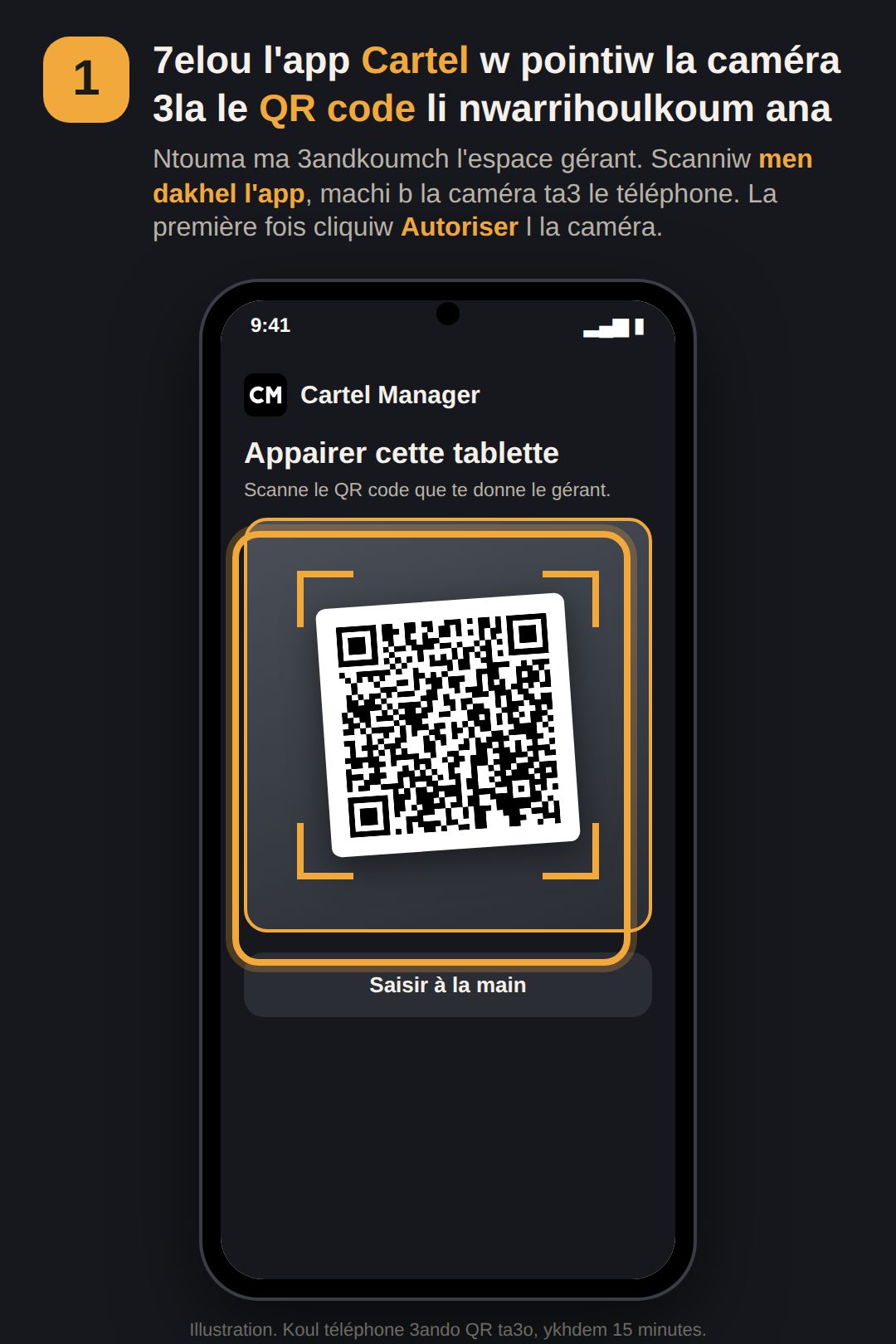
Le QR code ana li na3tihoulkoum (f le téléphone ta3i wela 3la papier). Ntouma ma 3andkoumch l'espace gérant : ma tqellbouch 3lih, ghir scanniw le QR li nwarrihoulkoum.
- 7elou l'app Cartel (iPhone : men l'écran d'accueil).
- Pointiw la caméra 3la le QR code li nwarrihoulkoum ana. Scanniw men dakhel l'app, machi b la caméra ta3 le téléphone.
- La première fois, cliquiw Autoriser l la caméra.
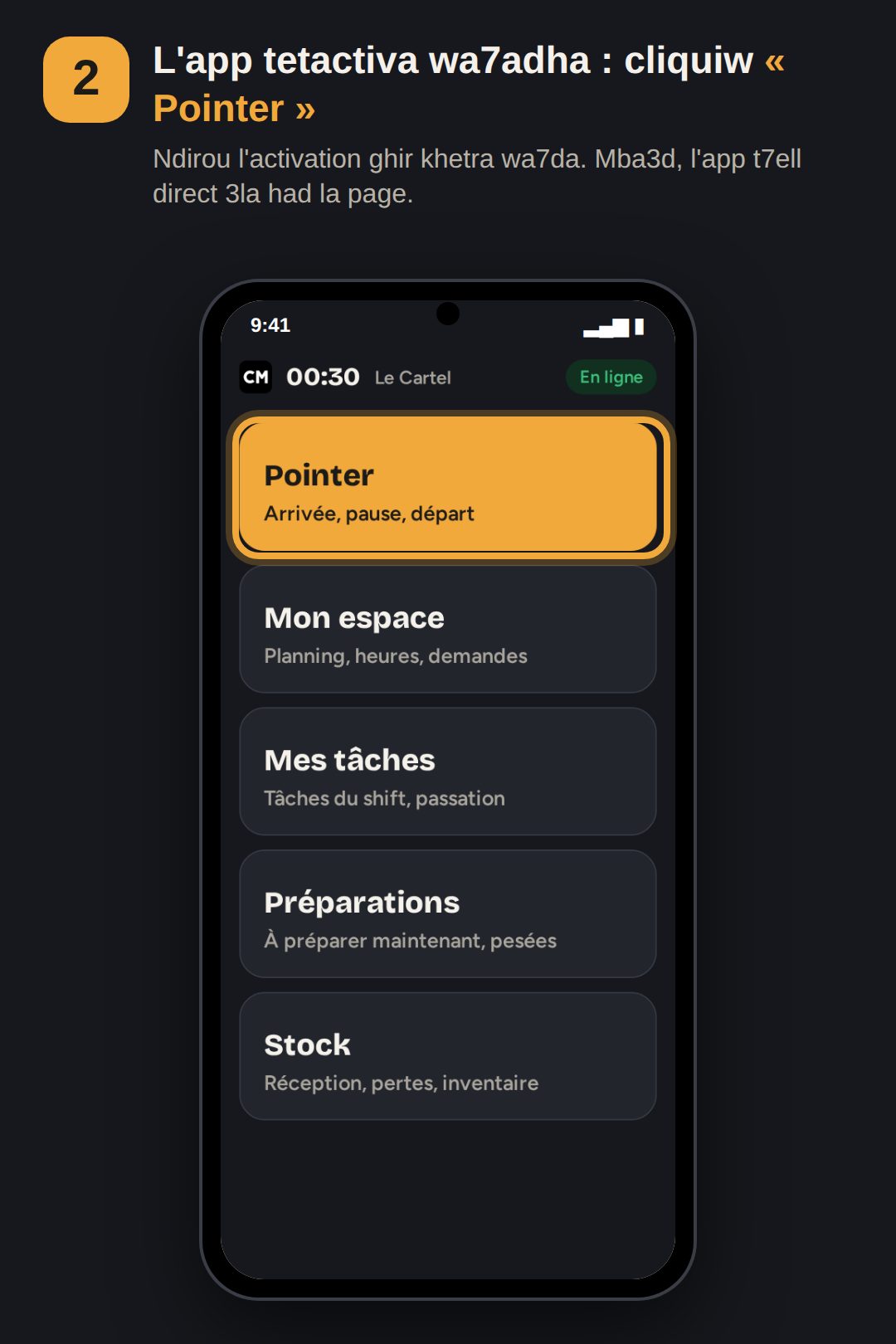
- L'app tetactiva wa7adha w tban la page d'accueil.
Koul téléphone 3ando QR code ta3o, w ykhdem 15 minutes. Ila fat l'wa9t, wela ma scannach, tolbou menni QR jdid. Ila ma tkhdemch la caméra : « Saisir à la main » w ktbou le code li ta7t le QR (sur Android, l'adresse du serveur : /api).
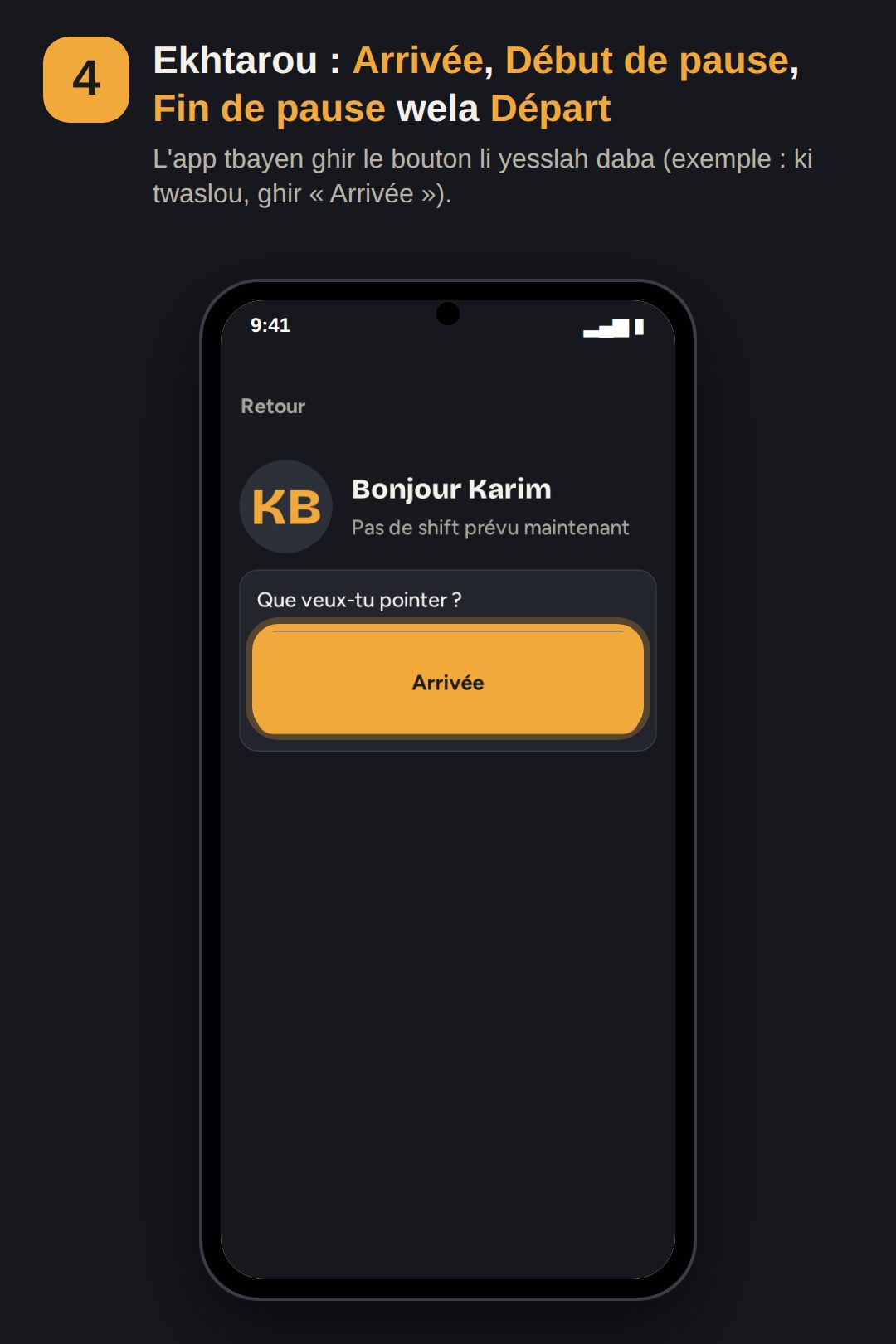
- Arrivée : ki twaslou l restaurant, 9bel ma tbdaw lkhedma.
- Début de pause : ki tkherjou pause.
- Fin de pause : ki terj3ou mel pause, 9bel ma t3awdou tkhedmou.
- Départ : ki tkhalsou, 9bel ma tkherjou mel restaurant.
Koul pointage = code + tswira. Ila wselttou m3a3tlin, l'app tsajjal le retard. Ila nsitou wela ghlattou f pointage, kallmouni bach nsalla7.
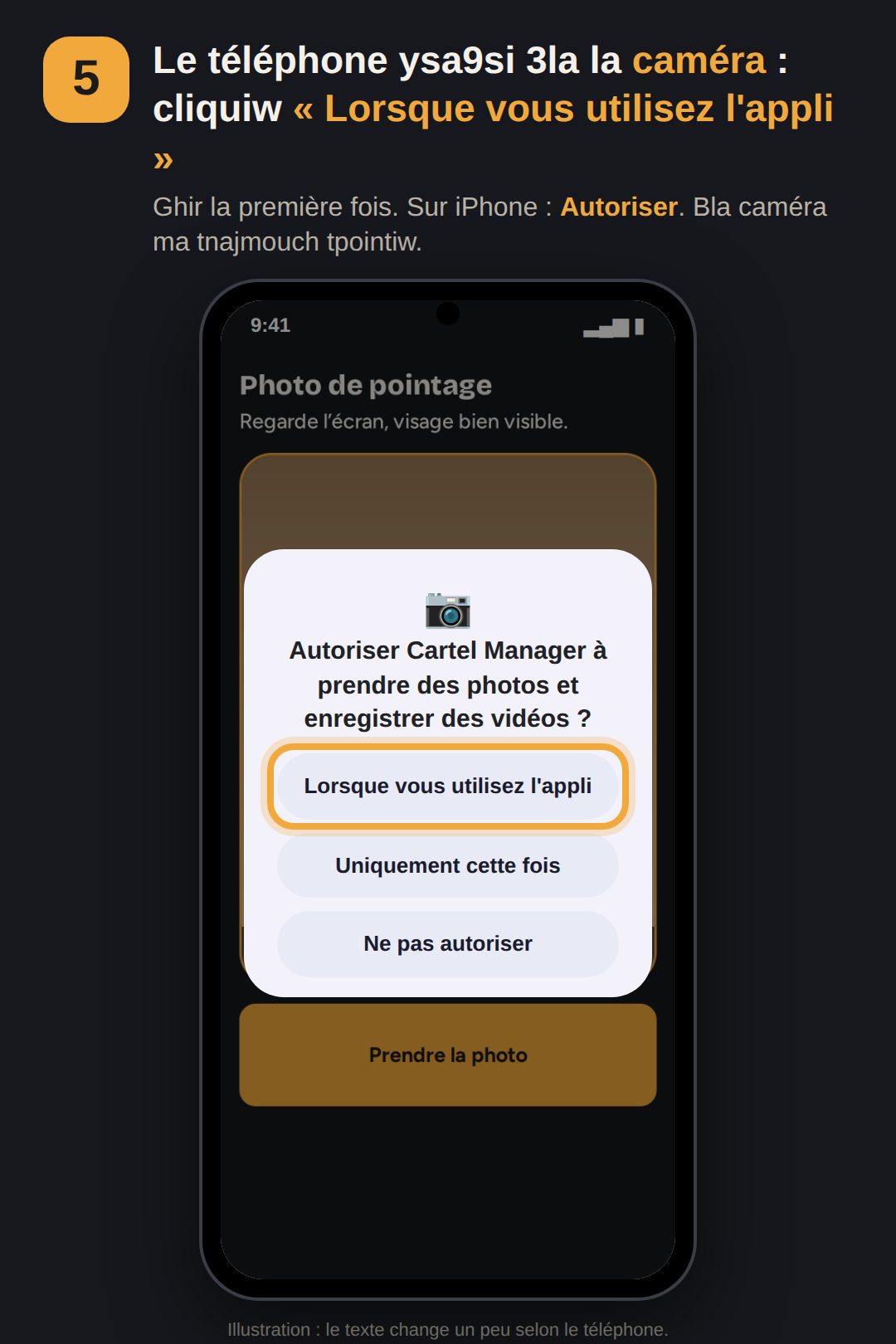
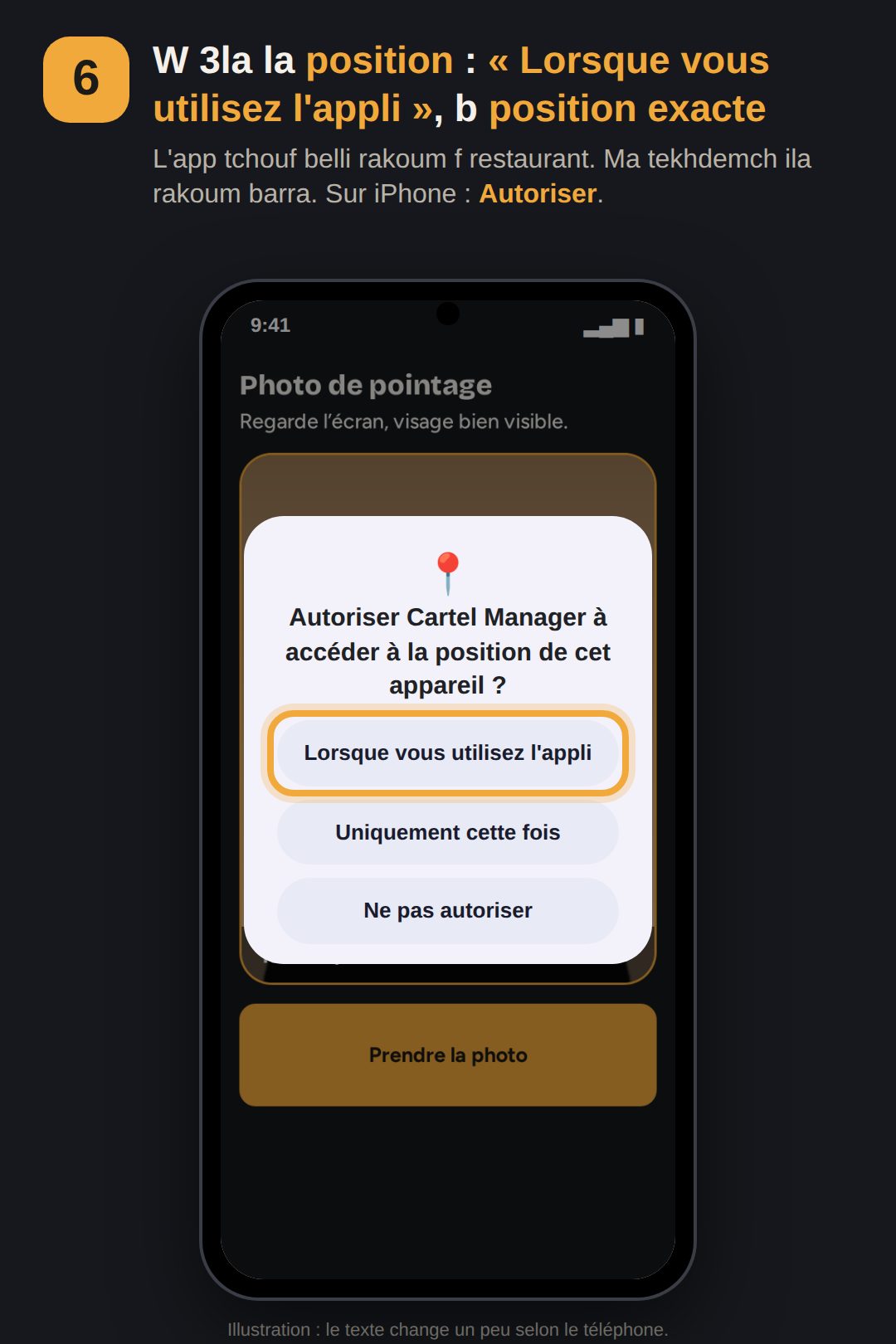
- La première fois, le téléphone ysa9si 3la la caméra w 3la la position : cliquiw « Lorsque vous utilisez l'appli » (iPhone : Autoriser). Pour la position, khalliw position exacte.
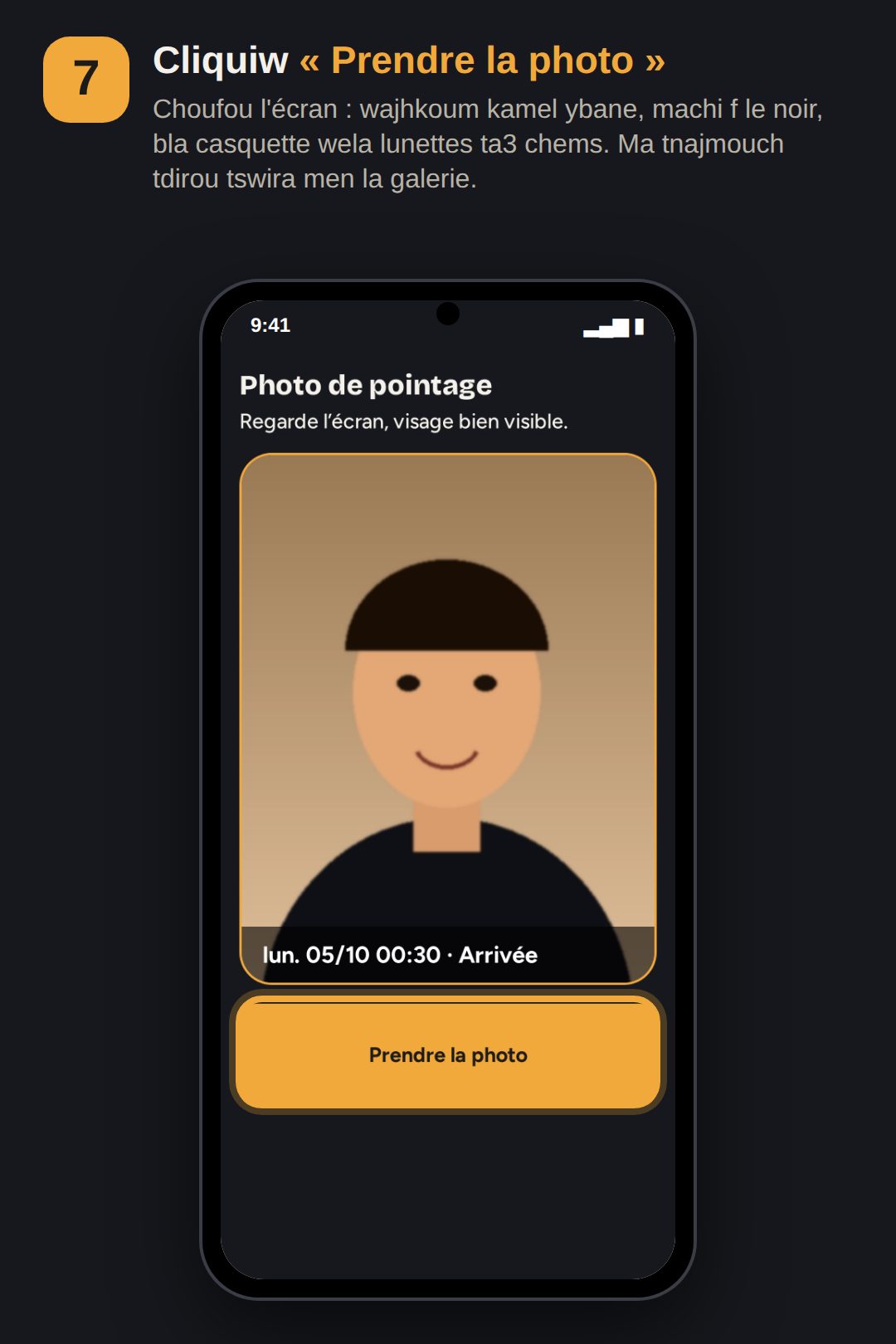
- Tswira tetdar ghir dakhel l'app, machi men la galerie. Wajhkoum kamel ybane, f blasa fiha dow, bla casquette wela lunettes ta3 chems.
- Lazem tkounou f restaurant : la position tchouf belli rakoum temma. Khalliw le GPS w internet m7allin.
Ila cliquitou « Ne pas autoriser » : Paramètres du téléphone › Applications › Cartel Manager › Autorisations › activiw Caméra w Position (iPhone : Réglages › Safari › Caméra / Position, wela Réglages › Confidentialité › Service de localisation).
- Cliquiw « Pointer ».
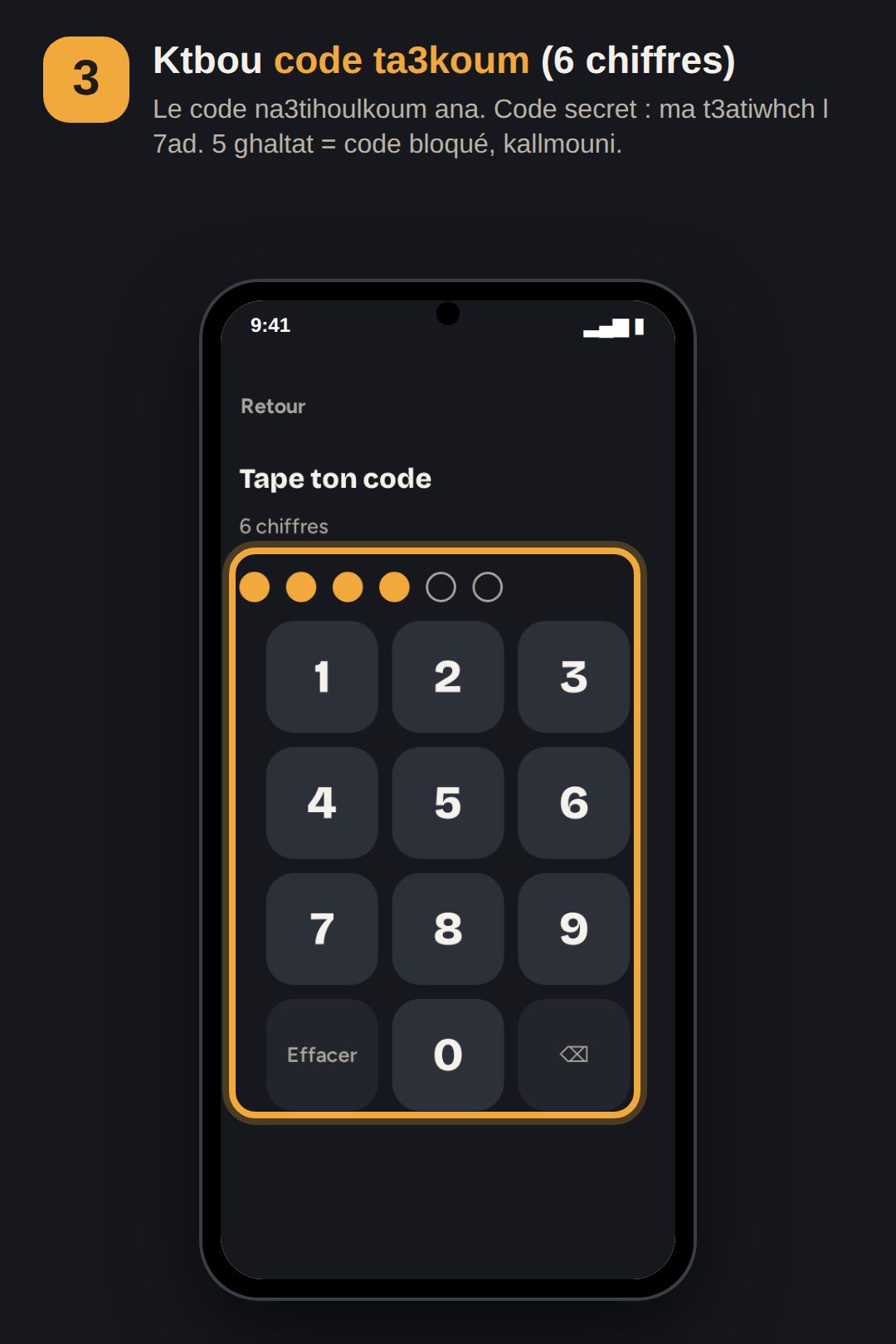
- Ktbou code ta3koum (6 chiffres) li na3tihoulkoum ana. Code secret, ma t3atiwhch l 7ad.
- Ekhtarou Arrivée, Début de pause, Fin de pause wela Départ.
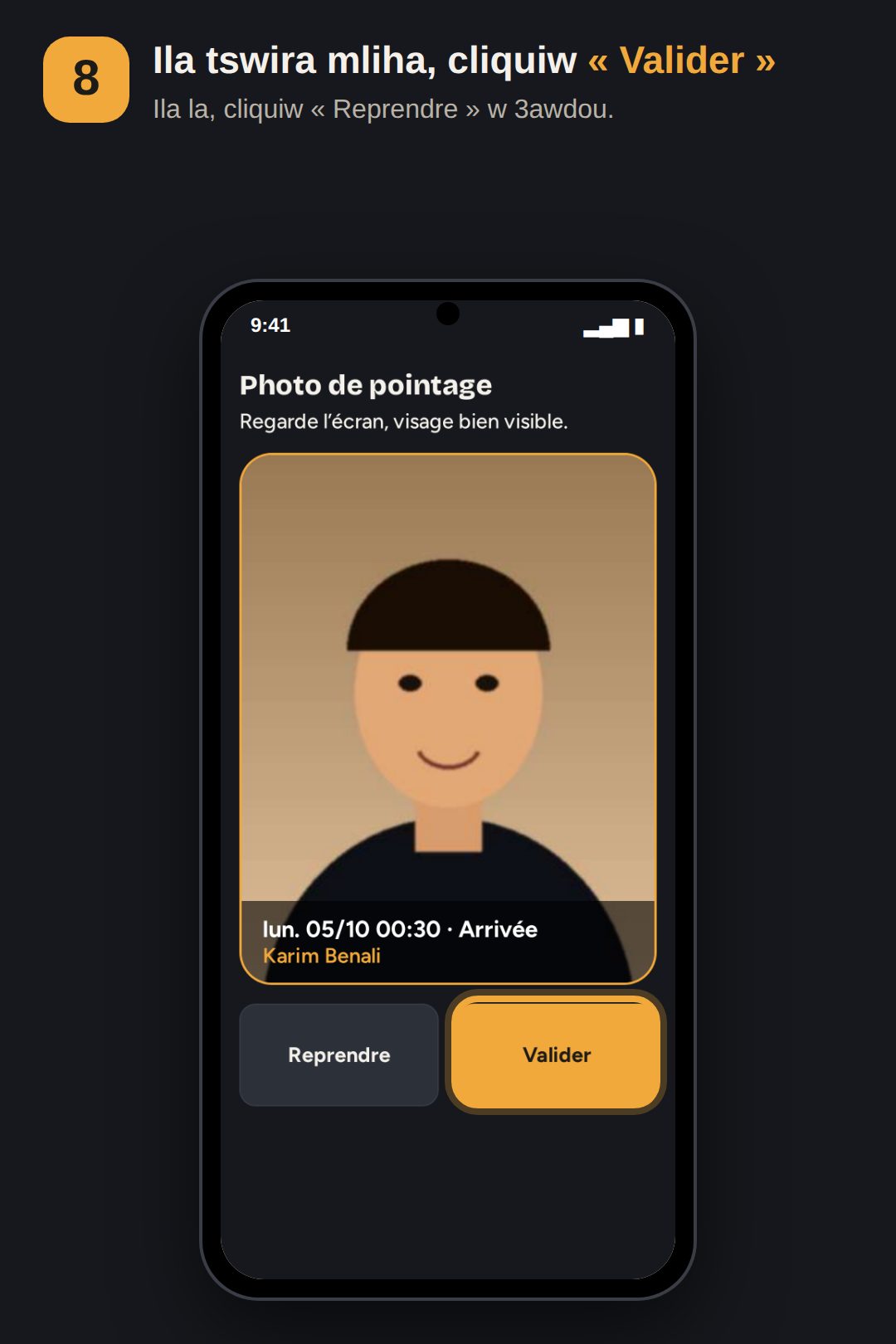
- Cliquiw « Prendre la photo » (wajhkoum ybane), mba3d « Valider ». La première fois, cliquiw Autoriser l la caméra w la position.
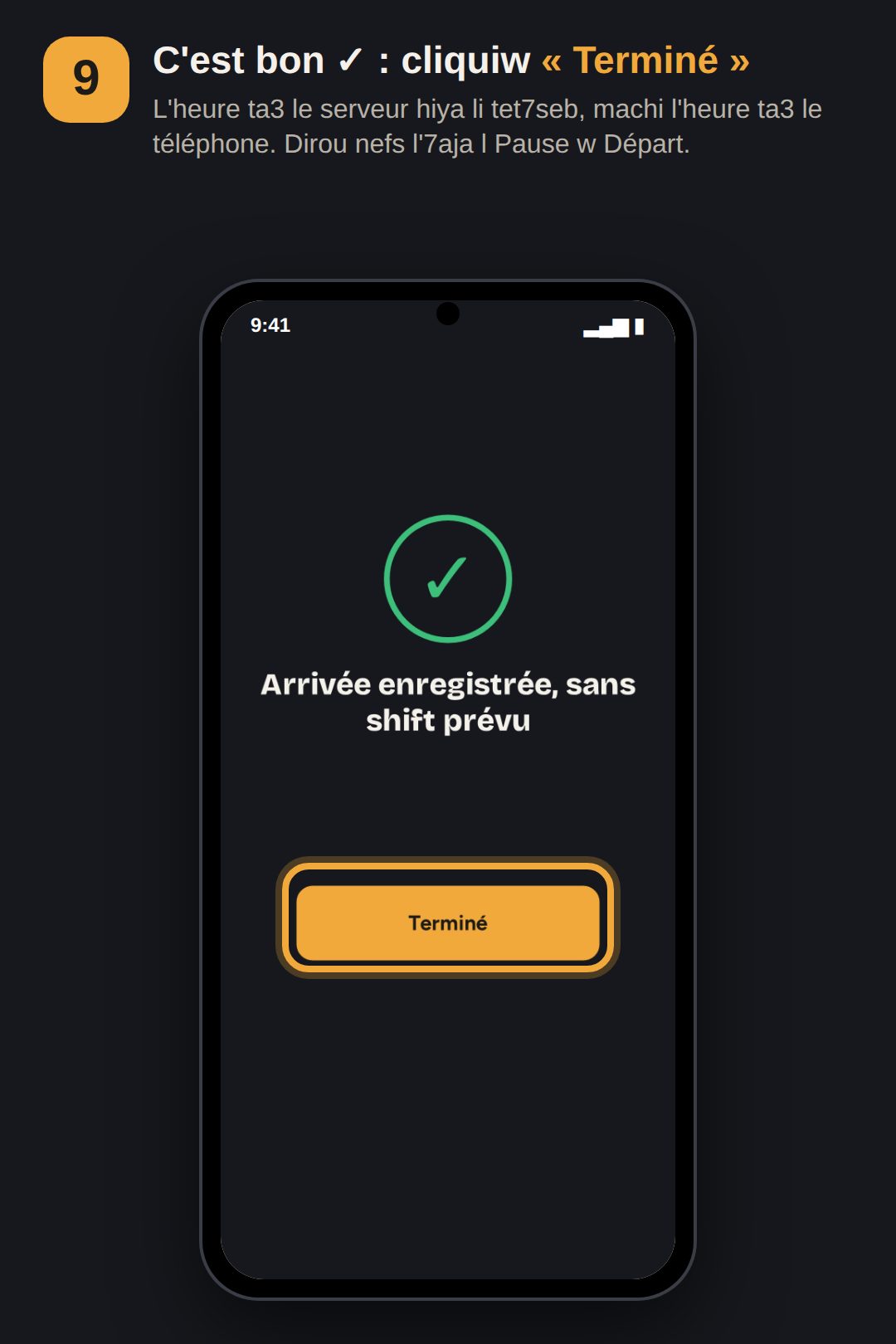
- Cliquiw « Terminé ».
Lazem tkounou f restaurant w 3andkoum internet. 5 ghaltat f le code = code bloqué, kallmouni. L'heure li tet7seb hiya ta3 le serveur, machi ta3 le téléphone.